
User Management (FT-1001.001)
About this document
Scope
This document provides background information as well as a functional description of the FT-1001.001 User Management core feature.
The described feature is supported from the release version 4.0 onwards.
This feature is part of the User Management functionality with number FN-1001.
Feature Availability
Feature Version | Available from | Summary of changes |
|---|---|---|
v1 | CMP Release 4.0 | Initial release |
v2 | CMP Release 5.2.3 |
|
Feature overview
Goals
The aim of the User Management feature is to allow Service Providers and Enterprise Account Administrators to create and manage Users and their assigned Access Rights.
Technical Prerequisites
This feature requires the following integrations to function as intended:
Other IT Systems - Mail server configuration

The above prerequisites reflect a typical setup.
Depending on the customer's existing infrastructure, business processes, or regulatory environment, additional integrations or configurations may be necessary to ensure full compatibility and optimal performance.
Functionality of the feature
User management in the CMP ensures secure and efficient access to the system's resources. This functionality allows administrators to control who can access the system, what they can do, and how they interact with the network and connected devices.
In the CMP, Users represent different stakeholders who interact with the platform to manage and optimize connectivity services.
In order to manage the CMP workflow effectively, multiple Users can be created and delegate different Access Rights to the Users. Assigning the appropriate Access Rights effectively limits each User’s abilities to the scope of their role within the Company.
A collection of Users can be organized into User Groups to which Access Rights can also be assigned.
For more details on User Groups, please see the following feature description: User Groups Management
CAS User
A CAS User is a person who utilizes the CMP Software (via UI a/o API). The User Is related to an Identity that can exist In the CMP CAS System or can be provided by an external System (SSO integration via authorization delegation).
CAS users have the following life-cycle:
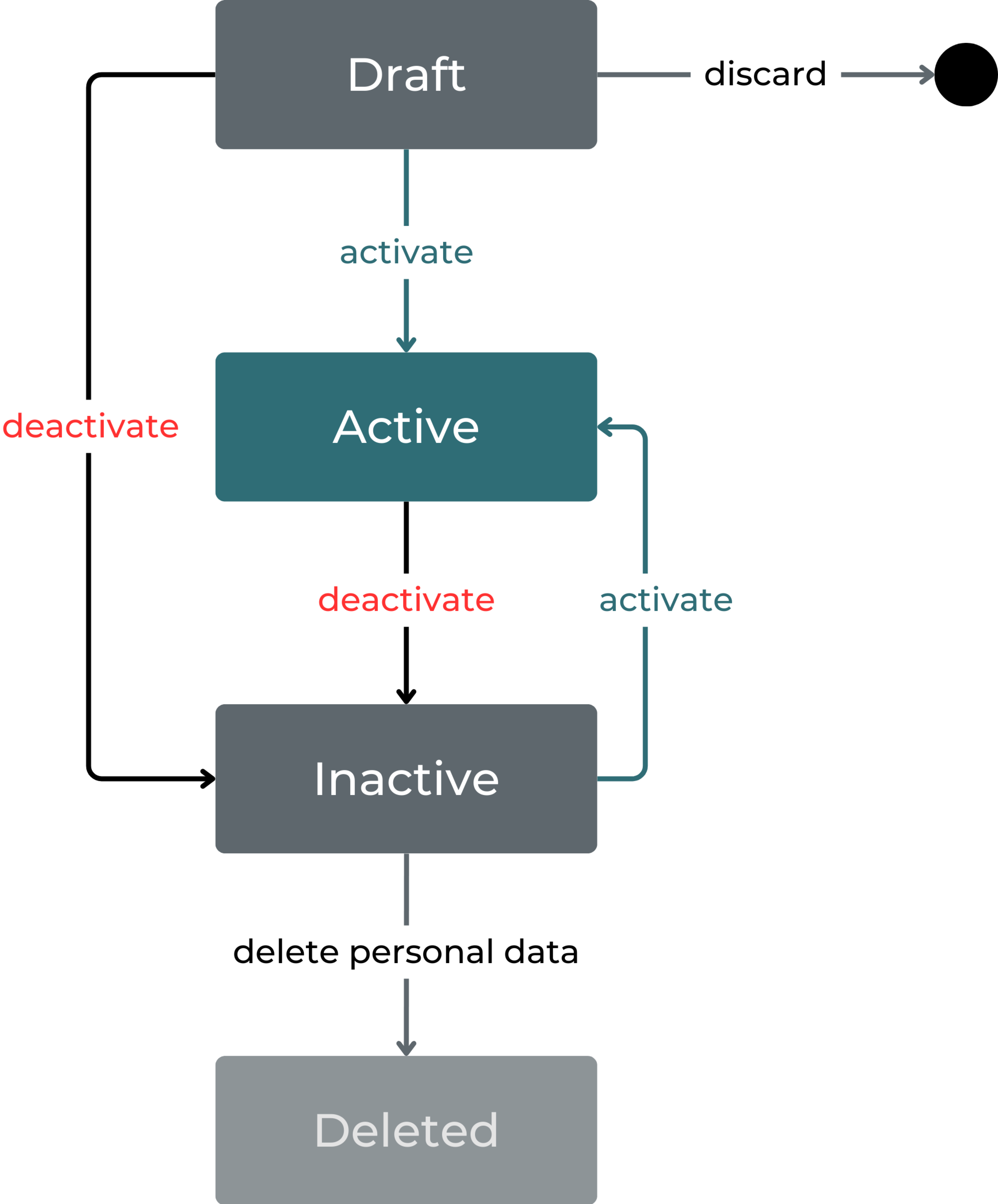
The described states have the following meaning:
Draft: Information entered for the user in this status can still be discarded, the User will be removed from the database. Draft users are not allowed to access any CMP module.
Active: Once activated a user is entitled to access CMP systems according to its authentication and authorization settings.
Inactive: Deactivation of a user blocks its access to CMP modules. Inactive users can be set back to Active at any time, given the user - performing the reactivation - has sufficient access rights.
Remark: Deactivation of a user will take effect with the next login attempt or after token timeout (in case the user is logged-in during activation)
Deleted: Deleting a user anonymizes its data without deleting the user in the database. References to the anonymized user record, e.g. in the audit log information are kept. Deleted users cannot be re-activated.
Local and Delegated Users
In an SSO integration scenario, Users - before getting authorized by the CMP CAS solution - may be authenticated via an external IdM (Identity Management System). Such users are defined as ‘Delegated’.
In contrast, standard CAS Users authenticated and managed completely in the CAS environment are called ‘Local’ Users.
User Domain
The User Domain allows to group users in different categories with similar behavior and semantic. By default the following user domains are set-up (can be extended):
CSP-ADMIN
CSP
ENTERPRISE
API
(User) Context
The following Context Types are supported by CMP CAS, which also form a hierarchy:
Root: Marks the highest/root level of the Context hierarchy.
Tenant: for MVNOs, Resellers or to supporting MNO own access hierarchies. (planned for further CAS versions)
Account Group
Account
Account-Customer (planned for further CAS versions)
A CAS User can have different Roles and can have access rights (ACL) in more than one Context.
Context Switch
As an example, a User can be an Administrator both for Account A and Account B. The CMP software will not show all Objects in one data grid. If a User needs to switch from one Account to another Account, a Context Switch needs to be done. Accordingly, the content of the software will be adapted.
User Creation
In the MAVOCO CMP, the following three criteria define whether and what kind of other Users a given (logged-in) User can create.
Access Rights of the User: User needs to have the Users Right "CAS User - Create or Modify"
User Domain of the User:
CSP-ADMIN domain Users can create and manage Users of any domain,
CSP domain Users can create and manage ENTERPRISE Users, and
ENTERPRISE domain Users can only create and manage ENTERPRISE Users.
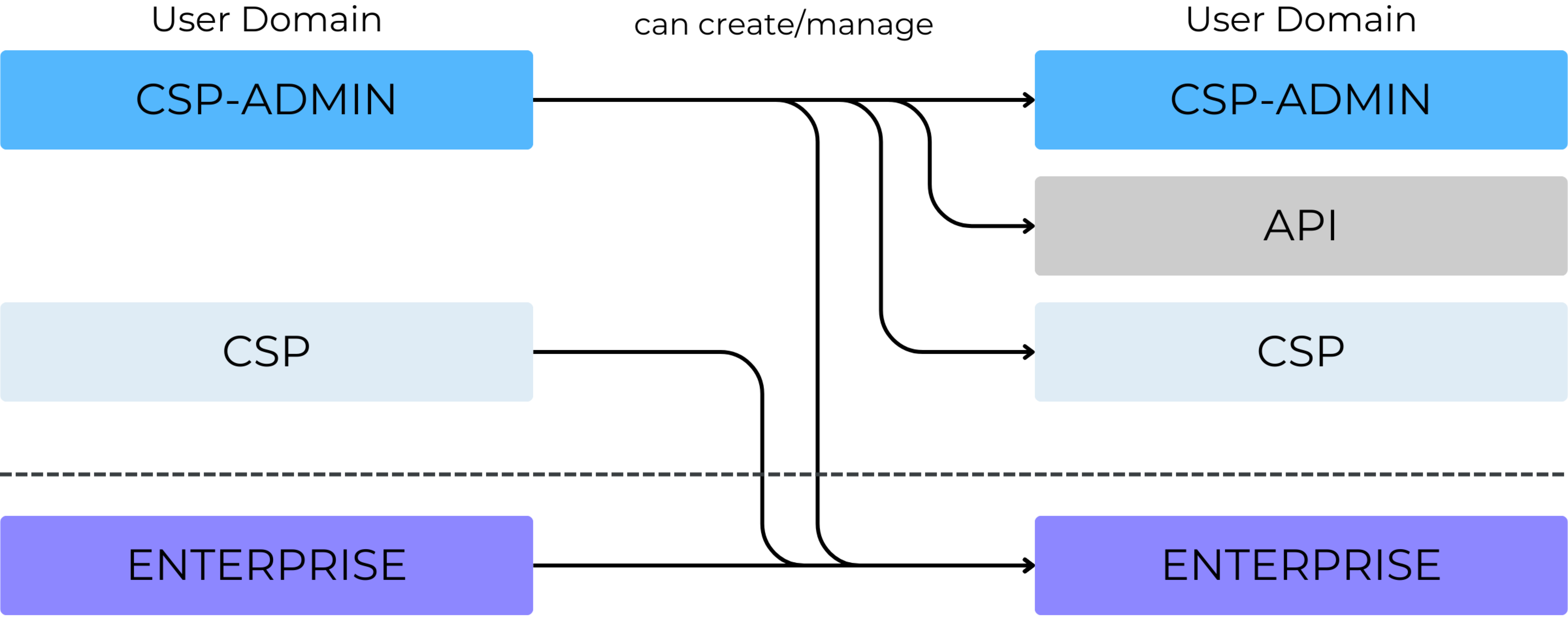
Context Level the User is assigned to: Users can only create Users on the same context level OR one level below
Root Users can create other Root Users OR Account Users,
Account Group Users can create Account Group Users,
Account Users can create other Account Users for assigned Accounts OR Customer Users for assigned Customers, and
Customer Users can create Customer Users for assigned Customers.
Two Factor Authentication (2FA)
Two-factor authentication provides an additional layer of security for User accounts by requiring a second step of verification at sign-in. In addition to using the login name and password to log in, the User has to enter a one-time password sent to them via SMS or email, depending on the configuration of the respective User.
CMP supports two channels for 2FA: SMS and email. SMS and email as 2FA token channels can be set independently from each other. The possible configuration options are:
SMS only,
email only, and
SMS and email.
Note that this capability is dependent on integration into SMS and/or email server.
General 2FA settings provided by CMP can be overwritten for specific Users in the User Profile by the Admin User with a specific User Right. The available values for User 2FA settings are the following (depending on the available features):
disabled,
SMS,
email, and
SMS and email.
2FA token SMS is sent to the User’s phone number specified in the User Profile. Filter mechanism allows to block SMS in case the User MSISDN doesn’t match a given pattern. In case the token SMS is blocked, corresponding feedback is displayed during the login process.
2FA token email can be sent in CMP default language (i.e. English) or the User’s preferred language that is defined in the User Profile. The email is sent to the User’s email address specified in the User Profile.
The minimum length of the sent 2FA token is 6 digits and the lifetime of the token can be configured on the CMP instance.
CMP instance can be configured to only send OTP token when the User logs in for the first time; otherwise, the token is sent with each login. CMP stores the timestamp of the first successful User login in order to allow that.
Reset Password
In case of forgotten, lost, etc. passwords, CMP allows to reset the password of any User. The User will receive an email with instructions on how to change and define their new password.
Welcome Email
CMP allows sending a welcome email to new Users at activation. The welcome email informs the User about their login name and provides an option to set their new password.
Access Rights and ACL
For each CMP module (EP, RM, CSP Portal, BM, and CAS-UM) there is a predefined list of access rights that allow to specify functional rights for CMP users.
Examples (module / access right name / data type):
portal / ‘SIM - Price Plan Modify’ / boolean: Allows a user - if set to true the user - to modify Price Plans for SIM in the EP (= module)
cas / ‘CAS users - Create or Modify’ / boolean: This access right allows to change and create new users on the CAS-UM module

Remark: Although ACL (Access Control List) literally defines a list of access rights, in the context of CMP it's used both for a list of rights and one single right (i.e., access right) in the ACL.
Access Rights (ACLs) within a module are grouped into categories to show functional dependencies between rights and to simplify search processes.
Examples:
Category ‘SIM Cards’ in module ‘portal’ to group all access rights related to changes on a single SIM Card
Category ‘User Management’ in module ‘cas’ to group all access rights related to user Management functionality
Remark: There is a specific Type of ACLs, which are not used for managing user access rights. Although using the ACL mechanism, ACLs in the category ‘User Preferences’ are specifically used to store the user’s preferences in relation to a module (e.g. ACL portal / 'Dashboard Panels' / Text for storing the user-specific dashboard settings in a text field). Correspondingly ACLs in this category are not visible when defining ACL templates, User Groups, or retrieving Effective User Rights for a user.
ACL Templates
Assigning Access Rights to Users, User Group, or a context (as Access Policy) individually is very time-consuming, as there are already hundreds of different ACLs defined. To simplify the management of user rights the concept of ACL Templates has been introduced. It replaces the one-by-one assignment and setting of ACLs - as required in the past - by copying the ACLs of the ACL Template in one step.
With ACL Templates a CSP can easily assign pre-defined combinations of access rights in a short time. It enables the definition of standard sets of access rights and accelerates the allocation of rights.
During the usage of an ACL Template the related access rights are copied to the corresponding entity (User Group or Context). This means any subsequent change to an ACL template does not impact the settings of any User Group or context the Template was used with.
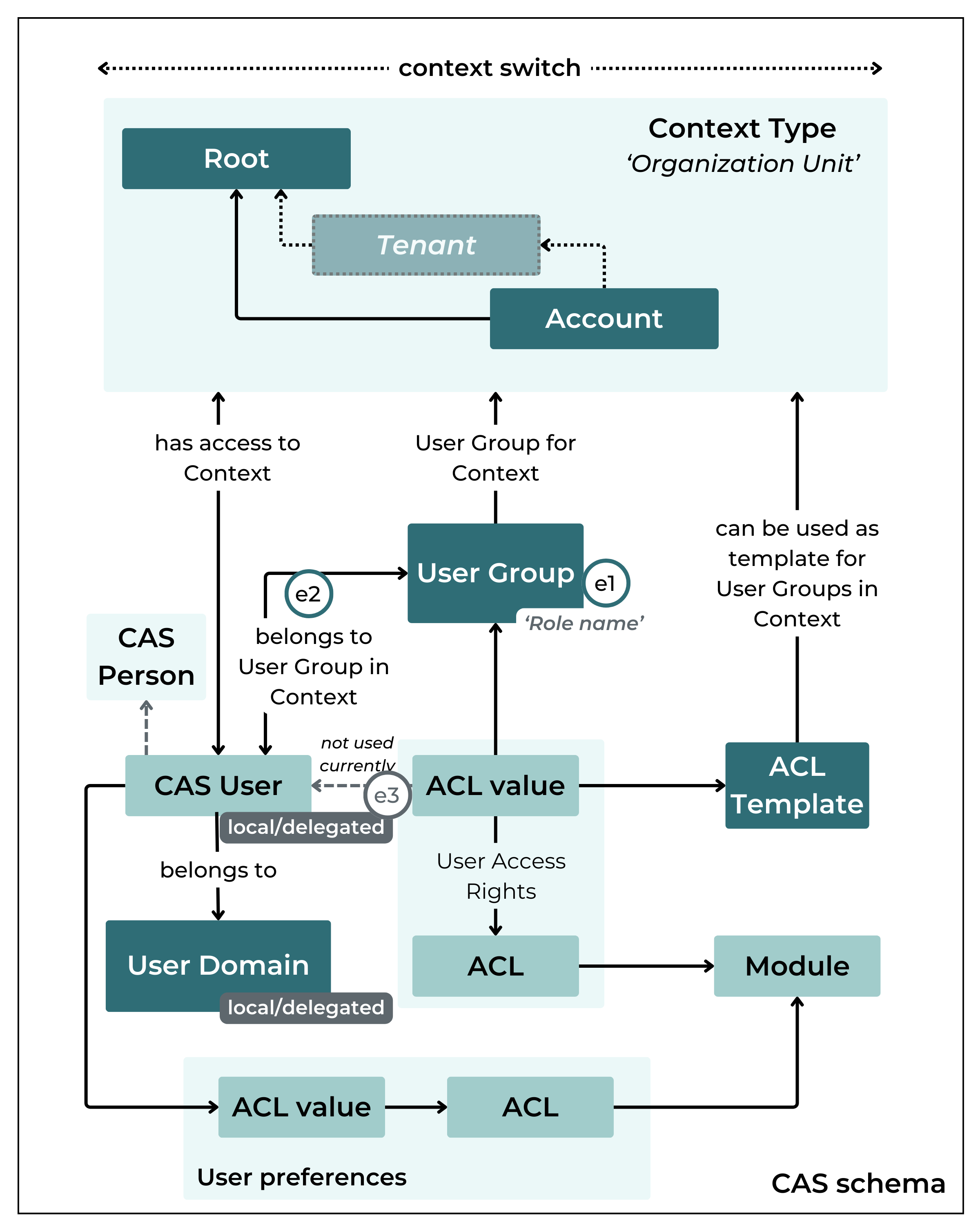
The following logical data model shows the entities described and how they are related to each other:
Effective User Rights
To answer the question, if a User has access to a specific function (described by an ACL), in a given context, the evaluation of several user rights related concepts (see below) is required. The result of the evaluation - computing the rights according to the defined evaluation steps - defines the Effective User Rights of a given User in a given Context. Remark: Effective User Rights only make sense in combination with a context, Effective User Rights without context are useless.
Effective User Rights are 'evaluated' (calculated) every time a) the user logs in to a CMP module or b) the context of the user has been switched.
In order to support mapping of user role definitions in external IdMs to CAS access right concepts, the effective rights calculation for delegated users comprises more evaluation steps (see e.g. step e1 below) than for local users. Steps only applicable for delegated users are marked accordingly in the following section.
Effective User Rights Evaluation steps
To calculate the Effective User Rights of a CAS User in a Context the following steps are performed:
e1 (only applicable for delegated users) - In case the user is provided with an external role name (via external authentication flow) AND the Context has a User Group assigned with a matching ‘Role name’, transfer the User Group settings to the Effective User Rights of the user. Remark: To take User Group settings into account it is sufficient that role names match, the user does not have to be assigned to the User Group (in contrast to step e2).
e2 - In case the user is assigned to one or many User Groups in the Context, write the settings to the Effective User Rights list. For more than one User Groups the evaluation will follow the alphabetical order (User Group Name), later access rights will overwrite earlier User Group rights - or access rights remaining from step e1 (only for delegated users).
e3 - (not used currently) Finally, access rights assigned to CAS User directly overwrite Effective User Rights calculated in steps e1. Remark: Experience shows that the functionality to define user-specific access rights - deviating from context Access Policies or User Group definitions - was rarely used. Thus, this option has been disabled for the time being.
Generally all access rights not assigned on a level (User Group, User) are considered as false = not allowed. Consequently, each access right not appearing in any of the evaluation steps is considered false when calculating the Effective User Rights for a user.
Remark: A user right not assigned is as well called ‘inherited’ as it ‘inherits’ its values from previous evaluation step (if applicable). So 'Inherited' is NOT an ACL value but an indication that the ACL is not assigned, thus the value is by default considered as false (see above).
CAS
Apereo CAS Server
The CMP CAS Solution is built around the Apereo CAS Server reference implementation of the CAS Protocol (see https://apereo.github.io/cas/6.2.x/index.html for a detailed description).
The following diagram from the Apereo website (see https://apereo.github.io/cas/6.2.x/planning/Architecture.html) shows which components of the Apereo Standard Architecture are used to fulfill the goals of the CMP CAS solution listed above:
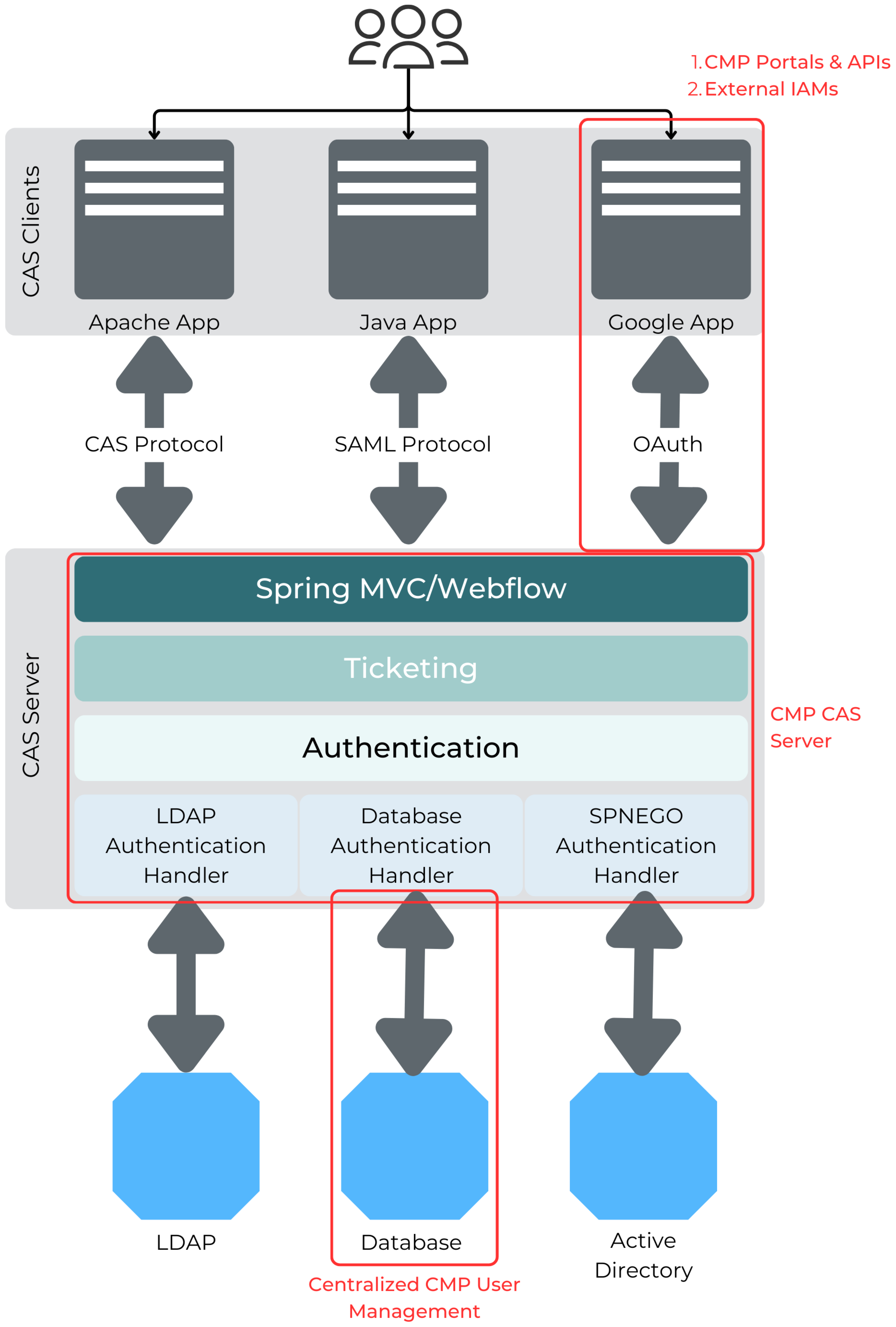
Mapping of Apero CAS architecture to CMP CAS solution
The standard OAuth 2.0 protocol integration capabilities are used to enable SSO for all CMP Portals and API access. In this case, the CMP Web Applications act as CAS Clients.
The same standard capabilities are used to delegate authentication/authorization via OAuth protocol to external IAMs to support various SSO integration scenarios.
In this case, the standard authentication flows have to be adapted to enable the different user authentication/authorization scenarios.South-bound the Apereo CAS Server is integrated into a Central CMP CAS Database.
The following elements supported by the Standard Apereo CAS framework are currently not used by the CMP CAS Solution and correspondingly out-of-scope (see as well mapping in the diagram above):
Other protocols than OAuth 2.0, specifically, SAML, OpenID, and OpenID Connect are not supported in the current version of the CMP CAS.
Other User Database integrations than CMP internal CAS Database, Directory Services like LDAP or Active Directory are not supported.
If required in the future CMP CAS features might be extended - based on the native capabilities of the Apereo CAS Implementation.
CMP CAS Solution Design
As a summary, the CMP CAS Solution consists of the following components:
The CMP CAS Server based on the Apereo CAS Implementation Framework (see above),
the Central CMP CAS Database replacing the Local User Information stored in EP, RM, and BM, and
the CMP User Management Application to manage the Centralized User and Access Information.
The following diagram sketches the different components and related interactions that make up the CMP CAS Solution:
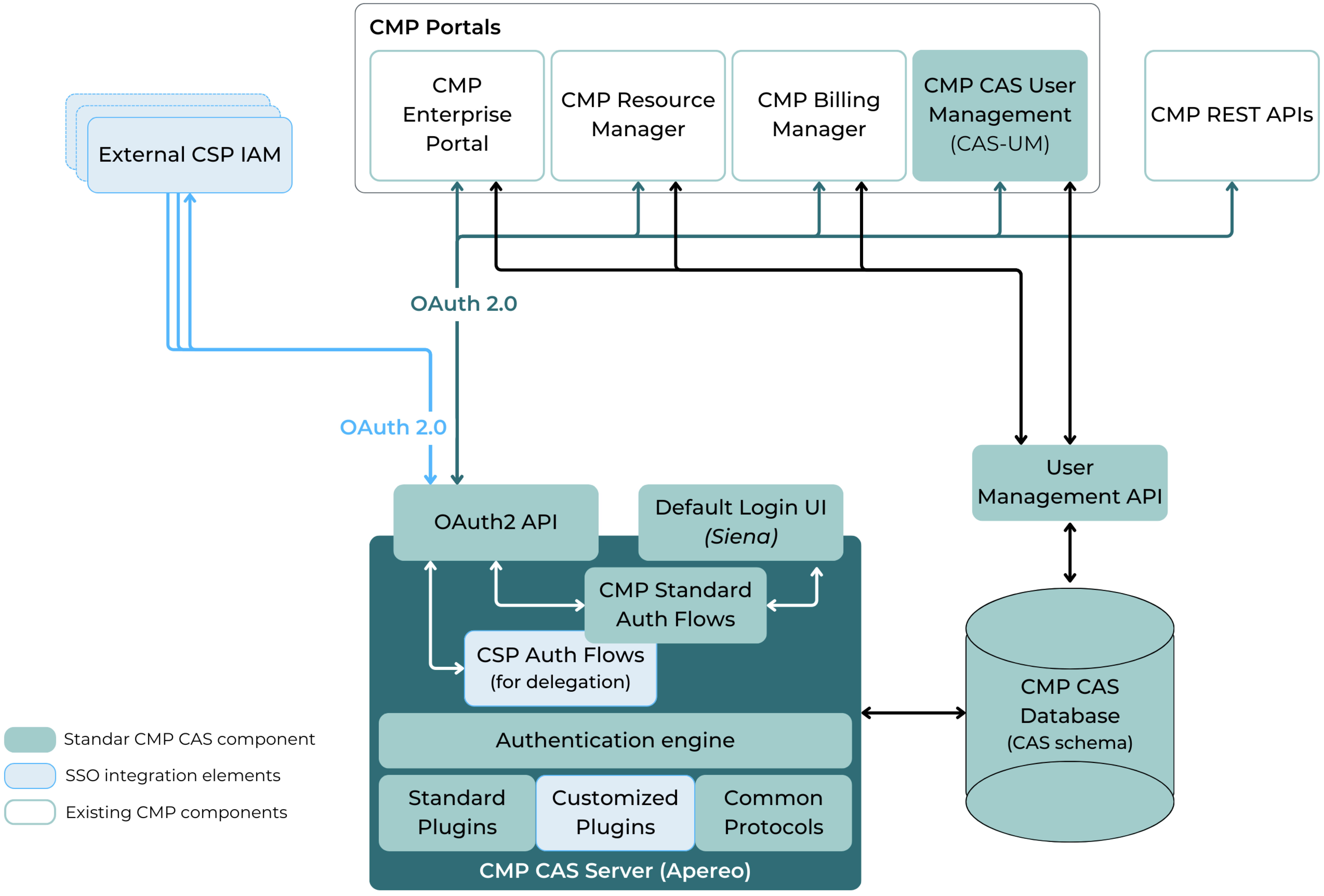
CMP CAS Architecture overview
The following chapters provide a more detailed overview of the functions and characteristics of the various components of the CMP CAS Solution.
CMP User Management Application
The MAVOCO CMP CAS User Management Application is a web application (based on the Siena GUI design) that is used to manage Users, User Groups, Access Rights, Templates for Access Rights, and for User Notifications. It can be used for CMP Software Components starting with the CMP version 4.3.5 or higher.
User Management Use Cases
The following table lists all User Management Use Cases that are supported by CMP User Management Application (CAS-UM) and the relationship to corresponding functions in the various CMP Portals.
User Management Use Case | Description | Transferred from Portal(s) |
|---|---|---|
Manage CAS Users |
| Enterprise Portal (EP):
Resource Manager (RM):
Billing Manager (BM):
|
Password Management |
| Enterprise Portal (EP):
Resource Manager (RM):
Billing Manager (BM):
|
Manage Contexts and User Groups (Organization Unit Access) |
| Enterprise Portal (EP) & Resource Manager (RM):
|
Manage ACLs |
| Enterprise Portal (EP) & Resource Manager (RM):
|
Manage ACL Templates |
| No existing functionality in CMP Portals. |
Manage Messaging Templates |
| Enterprise Portal (EP), Resource Manager (RM) & Billing Manager (BM):
|